In this post, I’ll show you two clean options using Shortcuts:
OPTION A: ONE BUTTON THAT OPENS A MENU (RESTART OR SHUT DOWN)
OPTION B: TWO SEPARATE BUTTONS (ONE FOR RESTART, ONE FOR SHUT DOWN)
Both options live directly in iOS 18 Control Centre, so you can stop remembering button combinations and just tap what you want.
WHAT YOU’LL GET
A consistent restart/shut down workflow
A Control Centre button (Option A) or two dedicated buttons (Option B)
A setup that’s quick to rebuild on any iPhone running iOS 18
BEFORE YOU START
Make sure you’re on iOS 18 minimum.
Open the Shortcuts app.
Decide which you prefer:
one menu button (Option A)
two instant buttons (Option B)
OPTION A: ONE SHORTCUT WITH A MENU (RESTART / SHUT DOWN)
WHY YOU’D USE THIS
You want one tidy Control Centre button
You like the extra “are you sure?” moment of choosing from a menu
You don’t want two separate controls taking up space
BUILD THE SHORTCUT
Open Shortcuts
Tap + (new shortcut)
Name it: POWER MENU (or similar)
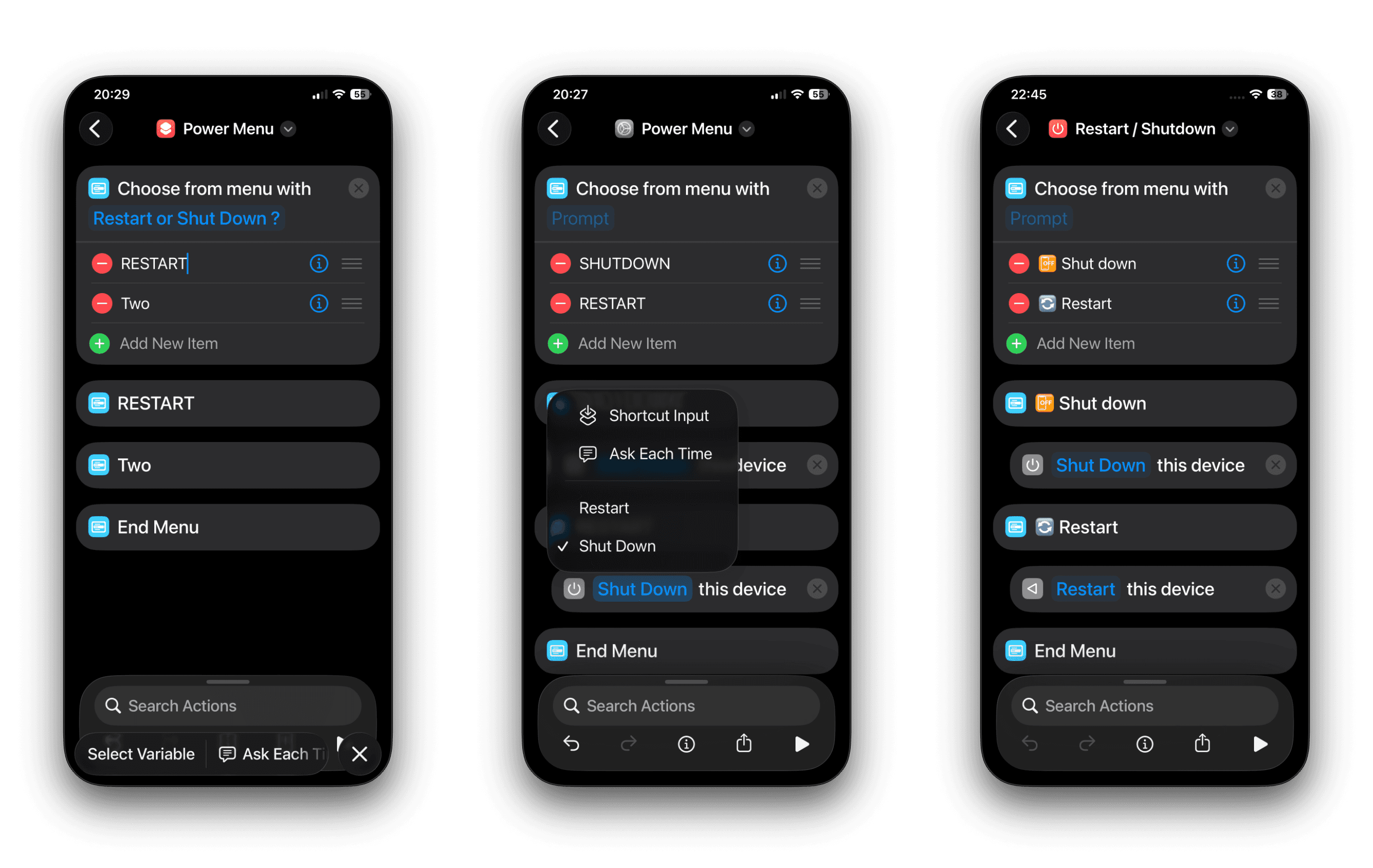
Add action: CHOOSE FROM MENU
Set the prompt to something like: “Restart or Shut Down ?”
Add menu item: SHUTDOWN
Under this item, add action: SHUTDOWN
Add menu item: RESTART
Under this item, again add action: SHUTDOWN
Then select the Shut Down parameter (in blue) and change to Restart
You can change the order of how both these will appear in the menu by selecting and moving up or down.
Tap DONE
ADD OPTION A TO CONTROL CENTRE (iOS 18)
Swipe down to open CONTROL CENTRE
Press and hold an empty area to enter edit mode
Tap Add a Control
Add Shortcuts
Tap the new Shortcuts control to configure it
Select your shortcut: POWER MENU
Tap DONE
HOW IT FEELS
Swipe → tap → choose Restart or Shut Down → confirm.
OPTION B: TWO SEPARATE SHORTCUTS (ONE FOR RESTART, ONE FOR SHUT DOWN)
WHY YOU’D USE THIS
You want the fastest possible action
You want one tap to mean one thing (no menu)
You’re happy using two Control Centre controls
BUILD SHORTCUT 1: RESTART
Open Shortcuts
Tap +
Name it: RESTART iPHONE
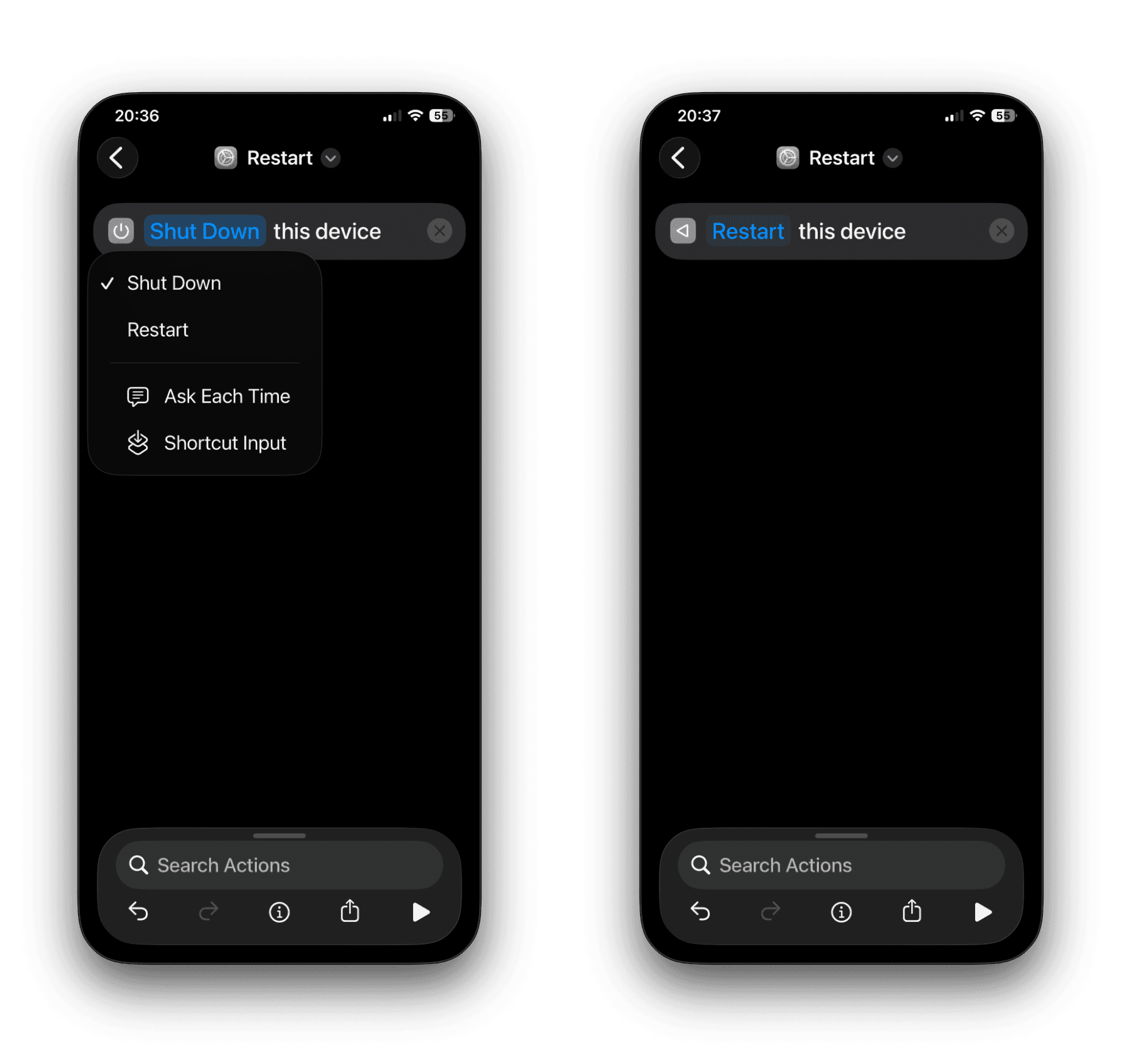
Add action: Shut Down
Change the Shut Down parameter (in blue) from Shut Down to Restart.
Tap DONE
BUILD SHORTCUT 2: SHUT DOWN
Open Shortcuts
Tap +
Name it: SHUT DOWN iPHONE
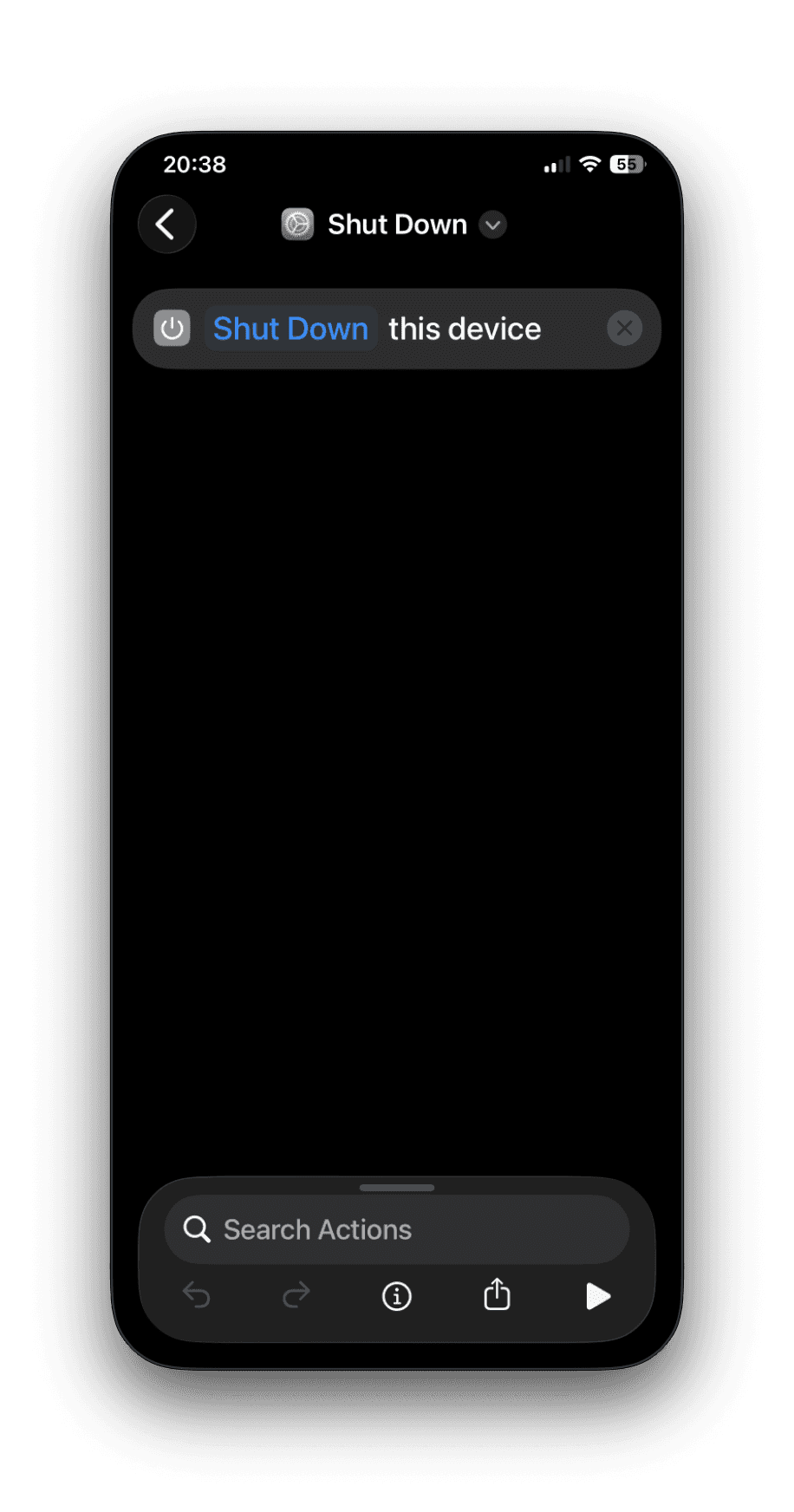
Add action: SHUT DOWN
Tap DONE
ADD OPTION B TO CONTROL CENTRE (iOS 18)
Swipe down to open CONTROL CENTRE
Press and hold an empty area to enter edit mode
Tap Add a Control
Add Shortcuts
Tap that Shortcuts control → assign it to RESTART iPHONE
Tap Add a Control again
Add Shortcuts a second time
Tap the second Shortcuts control → assign it to SHUT DOWN iPHONE
Tap DONE
HOW IT FEELS
Swipe → tap Restart (or Shut Down) → confirm.
WHICH OPTION SHOULD YOU PICK?
OPTION A (MENU)
Best if you want one Control Centre control for both actions
Best if you like the extra selection step before doing anything
OPTION B (TWO BUTTONS)
Best if you want pure speed
Best if you restart often and want it immediately available
RECOMMENDED NAMING
Clear names make Control Centre setup painless:
POWER MENU
RESTART iPHONE
SHUT DOWN iPHONE
If you want to go a step further, give them different icons/colours in Shortcuts so they’re visually distinct when you’re editing.
TROUBLESHOOTING
IT ASKS ME TO CONFIRM EVERY TIME
That’s normal. Restart and shut down are sensitive actions, so iOS typically requires confirmation.
I ADDED SHORTCUTS BUT IT RUNS THE WRONG SHORTCUT
Go back into Control Centre edit mode, tap the control, and re-select the correct shortcut.
I ONLY SEE ONE SHORTCUTS CONTROL
In iOS 18 Control Centre, you can add controls multiple times. Make sure you’re tapping ADD A CONTROL again and adding SHORTCUTS a second time for Option B.
I TAP AND NOTHING HAPPENS
Open the shortcut inside the Shortcuts app once and run it manually. If iOS needs permissions/confirmation the first time, doing it there usually makes the Control Centre run more reliable afterwards.
SECURITY NOTE
These shortcuts are local and simple, but treat them like power buttons: place them somewhere sensible in Control Centre so you don’t hit them by accident.
FEEDBACK:
If this guide helped please let me know by completing the How useful did you find this? poll below.





More in

Shortcuts
Jump Straight to Any App’s Settings with This Two-Step Shortcut
Shortcuts
Check which door or window sensors are open using Shortcuts

Shortcuts
Night-Only Charging Automation in iOS Shortcuts Using Regex

Shortcuts
A Smarter Way to Organise Screenshots Using Apple Shortcuts

Shortcuts
One tap playlist

Shortcuts
Morning Routine

Shortcuts
Create an iOS Automation When Connecting AirPods
Shortcuts
Create an iOS Shortcut to Capture, Name, and Save Receipt Images.

Shortcuts
How to Save macOS Screenshots Anywhere with Shortcuts (Part 2)
Shortcuts
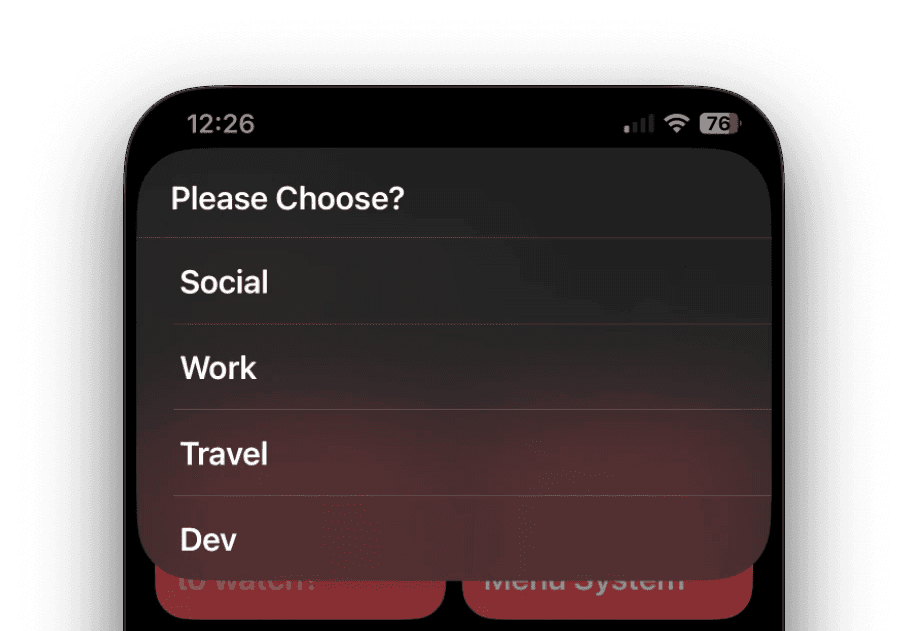
Create a menu based Shortcut
Shortcuts
How to Save macOS Screenshots Anywhere with Shortcuts (Part 1)
Shortcuts
Its the simple things.

Shortcuts
macOS Shortcut: Test Your Network Speed.

Shortcuts
Apple TV Shortcuts

Shortcuts
Trigger When an App Is Opened or Closed

Shortcuts
Estimated Time Of Arrival.
Shortcuts
Apple Watch Action Button.
Shortcuts
iOS 18 adds new If Command Features.
Shortcuts
Automations: Low Power Mode.
Shortcuts