Apple Home doesn’t currently offer a simple way to list which sensors are open, and while automations with “Wait” actions sound tempting, they’re unreliable in real use.
Instead, I’ve built a clean, reliable iOS Shortcut that checks each door and window sensor, builds a list of anything that’s open, and then speaks the result.
No delays. No guessing. It just works.
VERDICT
Best for: Homes with multiple door and window sensors
What it does: Speaks which sensors are currently open
Platform: iPhone and iPad (iOS/iPadOS)
Why it works: Avoids the unreliable “Wait” action entirely
WHAT YOU’LL GET
A spoken list of open doors and windows
A Shortcut you can run via Siri, widgets, or automations
A setup that scales easily as you add more sensors
WHAT YOU’LL NEED
An iPhone or iPad
The Shortcuts app
One or more HomeKit door or window sensors already added to Apple Home
WHAT THIS POST COVERS
Creating a reusable list of open sensors
Checking each sensor safely on iOS
Building spoken feedback that sounds natural
Handling multiple sensors cleanly
A small note on iOS vs macOS differences
–––––
BEFORE YOU START (SMALL BUT IMPORTANT)
On iOS, HomeKit contact sensors return their state as:
Open
Closed
On macOS, the same sensors may return 0 or 1.
This guide is written specifically for iOS, and all checks are based on Text = Open.
(There’s a short note later if you want to adapt this for Mac.)
STEP 1 — CREATE AN EMPTY LIST FOR OPEN SENSORS
This list will hold the names of any sensors that are currently open.
Open Shortcuts
Tap + to create a new Shortcut
Add the List action
Leave it completely empty. (You'll need to delete the two default items in the list)
Add Set Variable
Name the variable: OpenList
Set it to the empty List
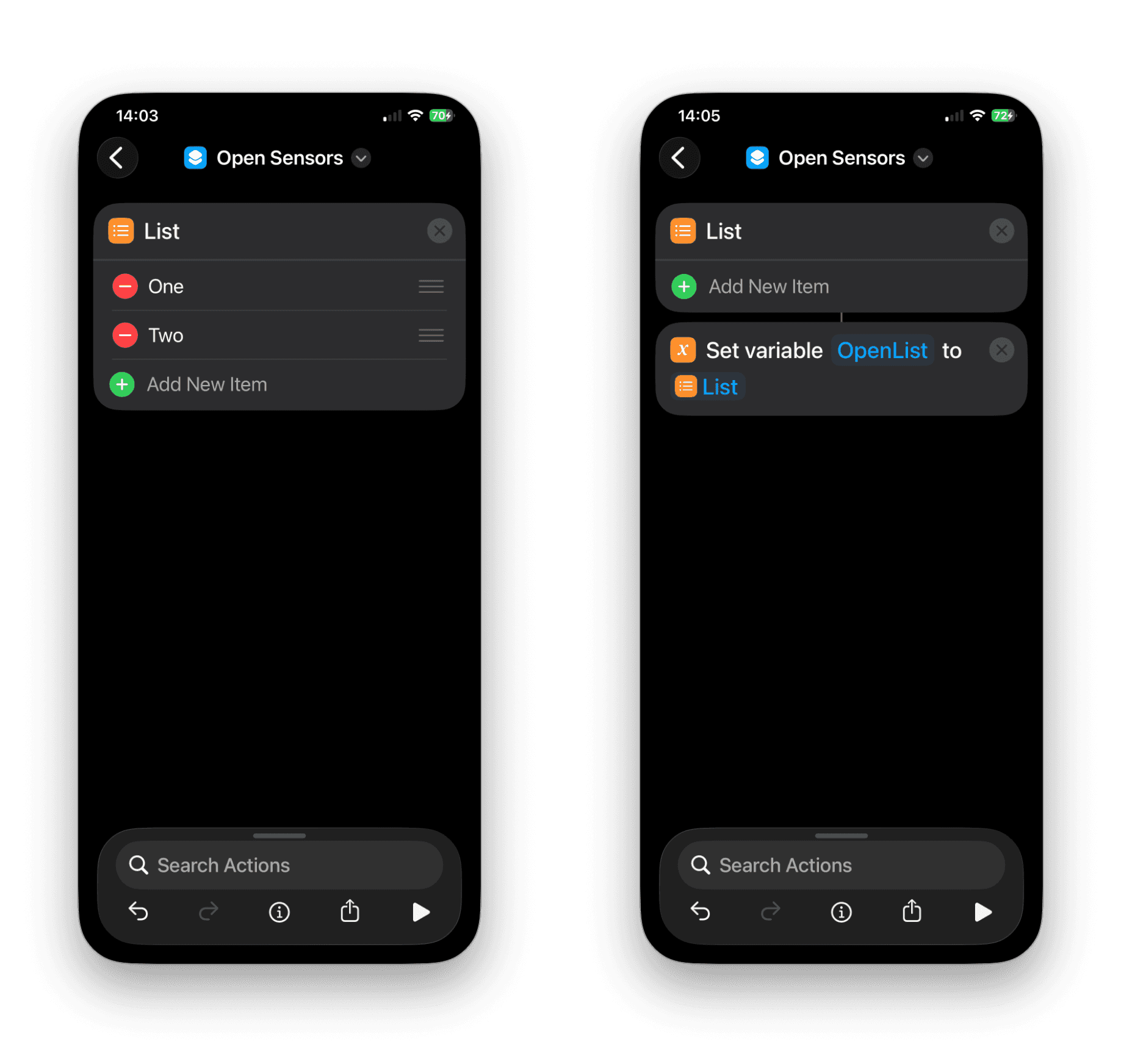
This list will be populated only if something is open.
STEP 2 — CHECK A SENSOR (CORE PATTERN)
This is the pattern you’ll repeat for each door or window sensor.
Add Get Home State
• Choose your sensor (e.g. Office Window Sensor)
• State: Contact Sensor State
Add a Text action
• Insert the variable Contact Sensor State
(This converts the Home state into plain text, which makes comparisons reliable on iOS.)
Add an If action
• If Text is Open
Inside the If block, add a Text action
• Example:
Office window is showing as open.
Add Add to Variable
• Variable: OpenList
• Add: the Text you just created
Leave “Otherwise” empty
End the If
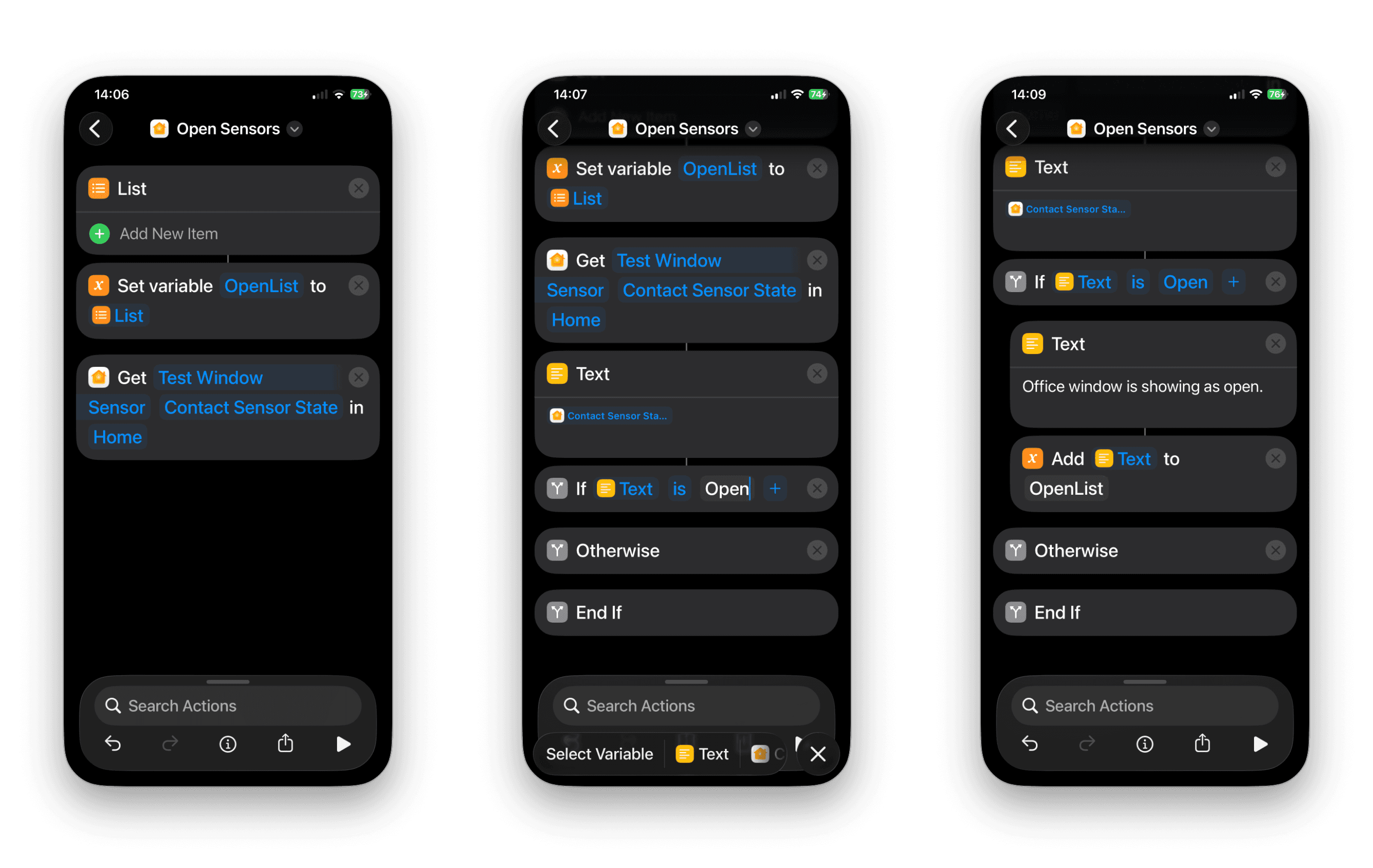
At this point, if the sensor is open, a friendly message is added to OpenList.
STEP 3 — REPEAT FOR EACH SENSOR
For every additional door or window sensor:
Copy the entire block from Get Home State to End If
Paste it underneath
Change:
• The sensor selected
• The message text
Example messages:
Front door is open.
Bedroom window is open.
Kitchen door is open.
Short sentences sound much better when spoken.
STEP 4 — COUNT THE RESULTS
Now we check whether anything was added to the list.
Add Count
• Input: OpenList
Add an If action
• If Count is greater than 0
STEP 5 — SPEAK THE RESULT
Inside the If block (something is open):
Add Text**
• The following sensors are open:
Add another Speak Text
• Speak: OpenList
Inside the Otherwise block (nothing open):
Add Speak Text
• All sensors are closed.
End the If.
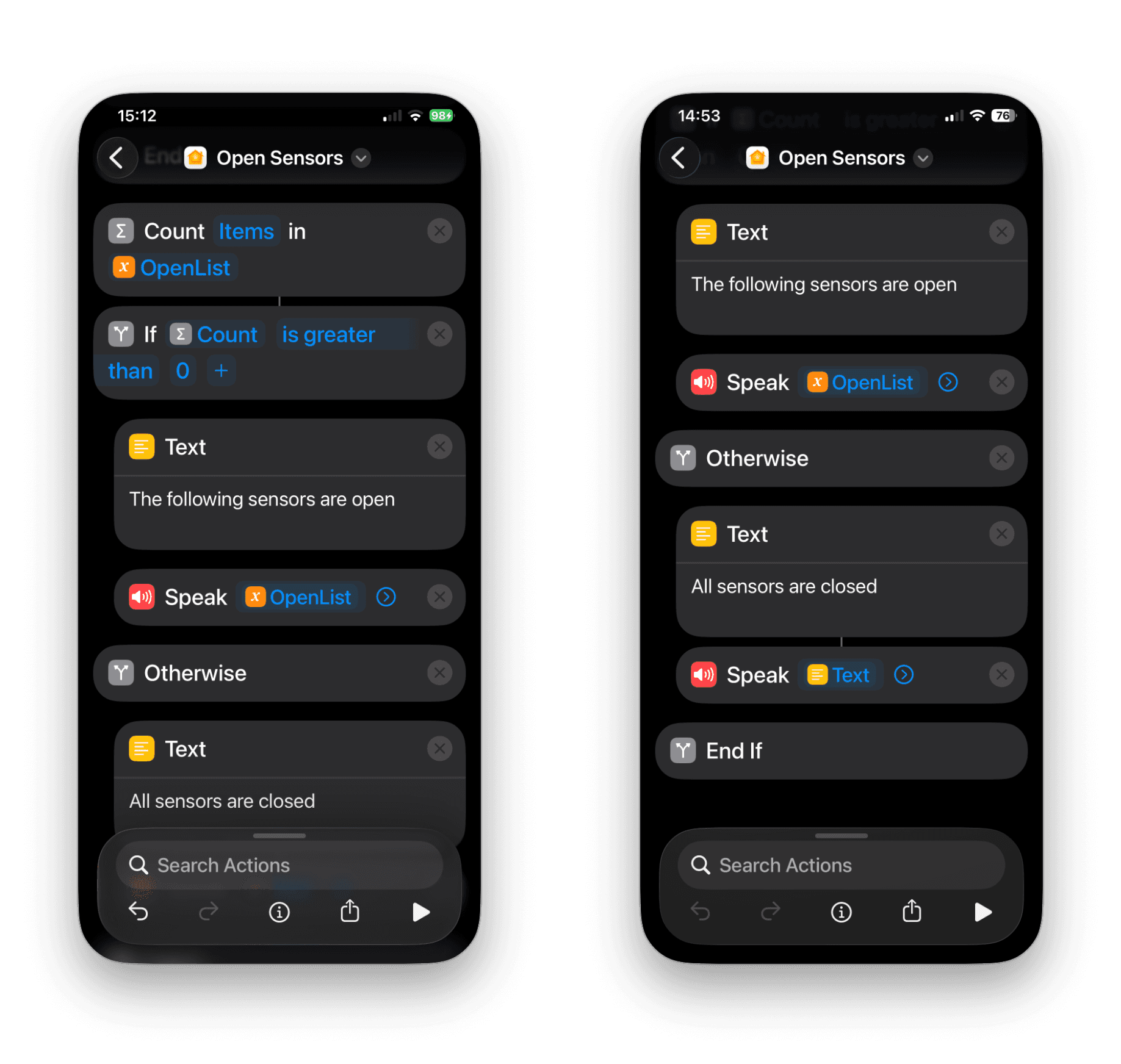
That’s it — your Shortcut is complete.
HOW TO USE IT
Run it from the Shortcuts app
Run connecting iPhone to power at nigh time
Add it to your Home Screen
Add it as a widget
Say:
“Hey Siri, run Check Door Window Sensors”
It’s especially good as a bedtime check.
TROUBLESHOOTING
If it always says “All sensors are closed”:
Make sure the sensor is actually open in the Home app
Confirm the If condition checks Text is Open
Ensure the Count action is counting OpenList, not “Input”
If the spoken output sounds awkward:
Add a Combine Text action
Combine OpenList with New Lines
Speak the combined text instead
A NOTE ON MACOS
On macOS, HomeKit contact sensors may return 0 (closed) or 1 (open).
If you recreate this Shortcut on a Mac, you’ll need to adjust the If condition accordingly.
For iOS, Text = Open is the most reliable approach.
WHY THIS WORKS BETTER THAN “WAIT”
No long-running automations
No timeouts
No Home hub inconsistencies
Works instantly, every time
This pattern scales cleanly and stays reliable as your Home grows.
If you want, I can provide this as a downloadable Shortcut for readers.
Just say the word.
FEEDBACK:
If this guide helped please let me know by completing the How useful did you find this? poll below.





More in

Shortcuts
Jump Straight to Any App’s Settings with This Two-Step Shortcut
Shortcuts
Shortcuts: Power menu

Shortcuts
Night-Only Charging Automation in iOS Shortcuts Using Regex

Shortcuts
A Smarter Way to Organise Screenshots Using Apple Shortcuts

Shortcuts
One tap playlist

Shortcuts
Morning Routine

Shortcuts
Create an iOS Automation When Connecting AirPods
Shortcuts
Create an iOS Shortcut to Capture, Name, and Save Receipt Images.
Shortcuts
How to Save macOS Screenshots Anywhere with Shortcuts (Part 2)
Shortcuts
Create a menu based Shortcut
Shortcuts
How to Save macOS Screenshots Anywhere with Shortcuts (Part 1)
Shortcuts
Its the simple things.

Shortcuts
macOS Shortcut: Test Your Network Speed.

Shortcuts
Apple TV Shortcuts

Shortcuts
Trigger When an App Is Opened or Closed

Shortcuts
Estimated Time Of Arrival.
Shortcuts
Apple Watch Action Button.
Shortcuts
iOS 18 adds new If Command Features.
Shortcuts
Automations: Low Power Mode.
Shortcuts