In a previous post, I made a straightforward folder action to handle the screenshots I take while creating posts for this blog. As with anything, the first try isn’t always perfect, and to be honest, as I used it more, I noticed a few things that bothered me, such as needing to agree to delete each file after it was moved and renamed. So, almost a year later, I decided to explore if there was a simpler way to do this. And wouldn’t you know it, I’ve found a solution that doesn’t need the Automator app or any scripts it’s all done using the Shortcuts app!
To recap, I wanted a solution so that when I take a screenshot, it moves to a location of my choosing and then offers me the ability to rename the file.
So to start, let’s open the Shortcuts application and get going.
So with the Shortcuts application open, let’s select the Automation tab; this can be found on the left-hand side of the window, underneath the Gallery tab.
To create a new automation, select the + icon at the top right. This will bring up a smaller window offering you the different types of automations you can create, ranging from Time of Day through to Do Not Disturb.

The one we’re interested in is the Folder automation. So go ahead and select it, and select Next when done.
Here you’ll be presented with a few options; the first being selecting the Folder you want the automation to be applied to. In this example, I’ve selected my Desktop folder.

Next is to choose when we want the automation to run, when any item is either added, modified, or removed. For this project, we want to select Added.
The final part of the automation settings is to set the Run Immediately and deselect the Notify When Run.
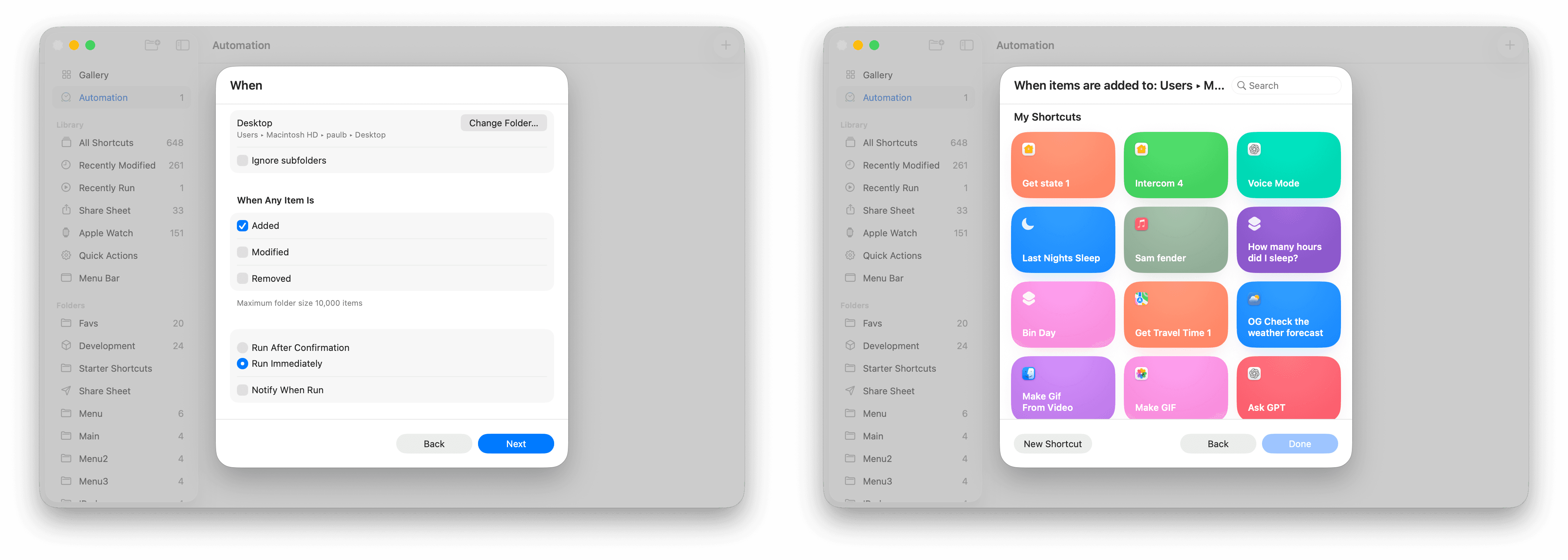
Select Next when done. You’ll now be presented with the option to select a Shortcut to run for the automation.
Select the option to create a new shortcut; this can be done by selecting the New Shortcut button (bottom left).
As you will notice, we have the Receive folder change summary as input already populated; now we just need to add some more actions.
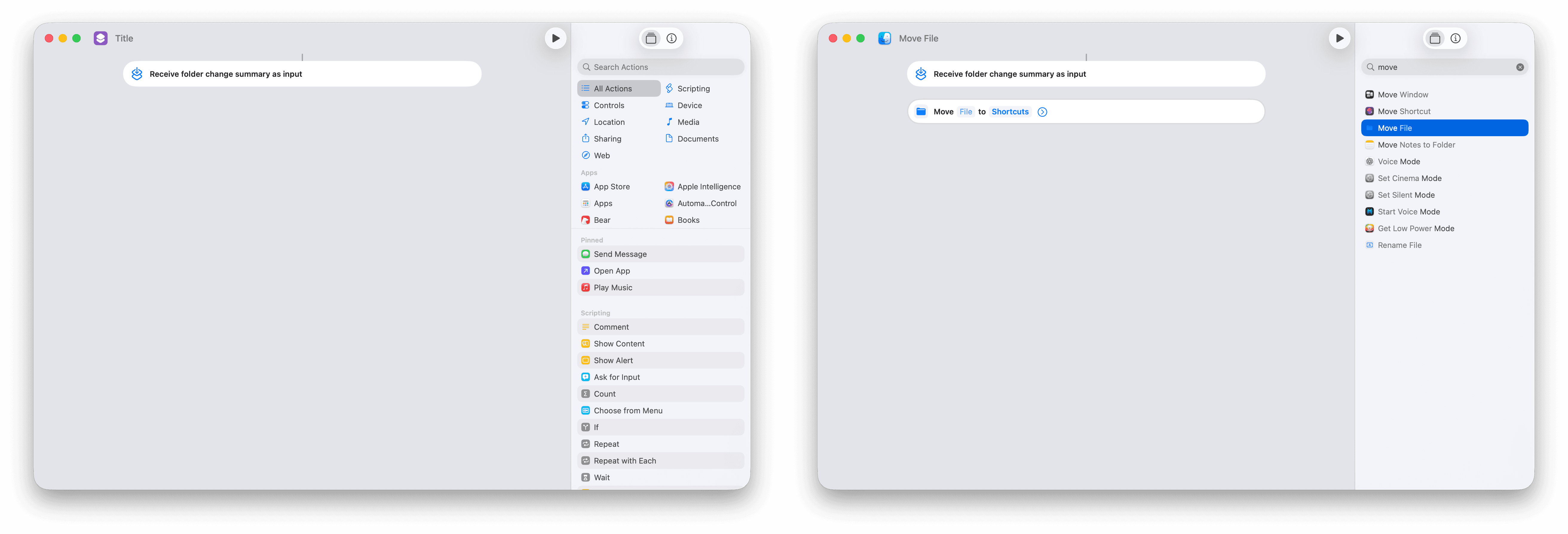
The first action we’re going to need is the Move File action; so simply search in the search bar (right-hand side) for the Move File action and drag to the shortcut.
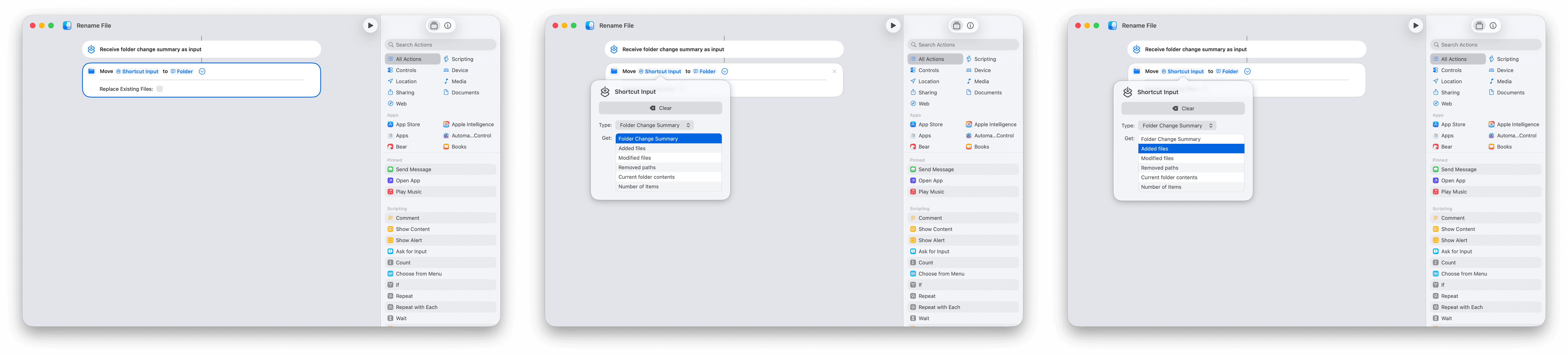
Now set the File parameter to Shortcut Input; this will automatically set the file to be moved to the file that gets added to the Desktop folder. Now we want to change this from the default. By just selecting the Shortcut Input parameter, you get a panel offering more get options; here we want to select Added Files.
Next, we want to set the Folder parameter; this is the destination where we want the newly added files to be moved to. For this, select the Folder parameter and select Ask Each Time. This way, every time a file gets added to the Desktop folder, we’ll get prompted to select the destination. If you select the Folder parameter again, you will be able to provide some text to the Ask Each Time prompt when the shortcut runs. Here, I’ve just added Where would you like to save the file to?
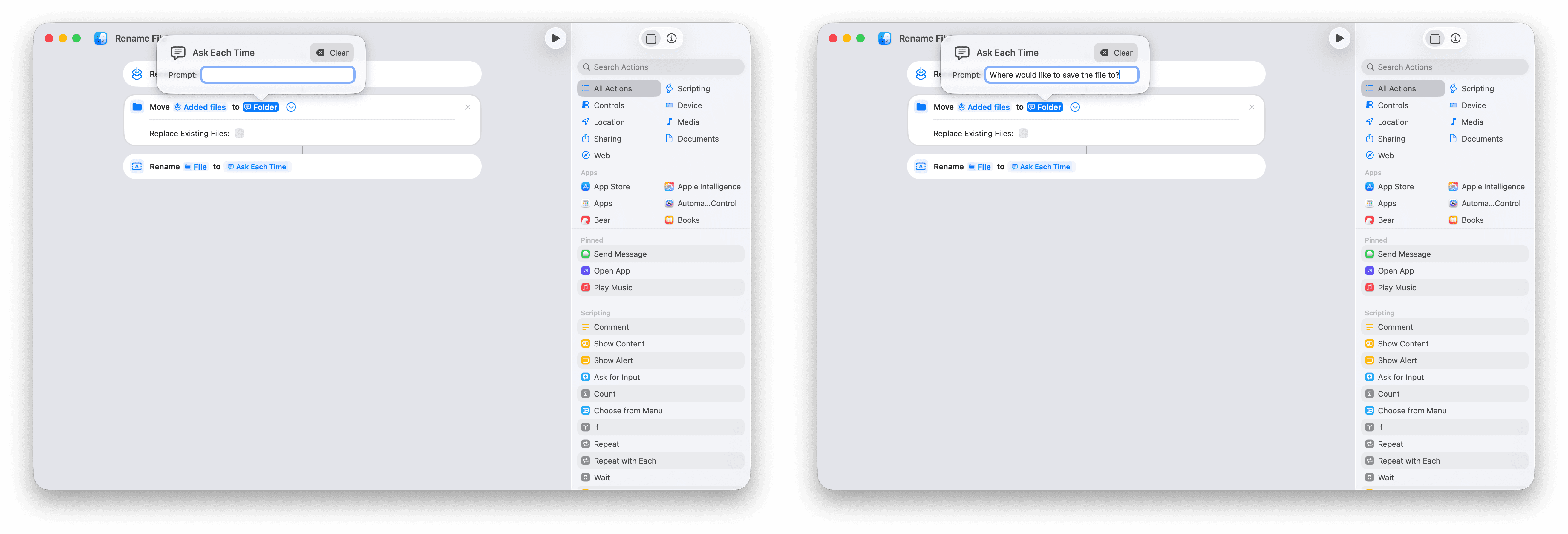
Next, we need to add the ability to rename the file once moved. This is particularly handy as you’ll probably know that with screenshots, each one is simply named Screenshot year month day at time.png, so having these renamed to something meaningful is a must.
So, let’s search for the Rename File action and add it to our shortcut, ensuring that we add it to the bottom of our existing actions.
You’ll notice that the File parameter will be defaulted to the files from the action above; this is fine. The only thing we need to change is what we want to rename the files to; for this, we simply change the Name parameter to Ask Each Time.

At this point, we can go ahead and close the Shortcut window and give the thing a try. For testing, you could just take a screenshot of a window and see what happens.
Now you’ve got a nice automation set up to move and rename files that pop up on your desktop. If don’t need to move or rename a file, just click the Cancel button when the shortcut pops up and asks for the location.
As always, I’d love to hear any ideas you might have.





More in

Shortcuts
Jump Straight to Any App’s Settings with This Two-Step Shortcut
Shortcuts
Shortcuts: Power menu
Shortcuts
Check which door or window sensors are open using Shortcuts

Shortcuts
Night-Only Charging Automation in iOS Shortcuts Using Regex

Shortcuts
One tap playlist

Shortcuts
Morning Routine

Shortcuts
Create an iOS Automation When Connecting AirPods

Shortcuts
Create an iOS Shortcut to Capture, Name, and Save Receipt Images.

Shortcuts
How to Save macOS Screenshots Anywhere with Shortcuts (Part 2)
Shortcuts
Create a menu based Shortcut
Shortcuts
How to Save macOS Screenshots Anywhere with Shortcuts (Part 1)
Shortcuts
Its the simple things.

Shortcuts
macOS Shortcut: Test Your Network Speed.

Shortcuts
Apple TV Shortcuts

Shortcuts
Trigger When an App Is Opened or Closed

Shortcuts
Estimated Time Of Arrival.
Shortcuts
Apple Watch Action Button.
Shortcuts
iOS 18 adds new If Command Features.
Shortcuts
Automations: Low Power Mode.

Shortcuts