There’s a better way: a two-action Shortcut you can run from Control Centre that jumps straight to the current app’s Settings page.
WHAT THIS SHORTCUT DOES
This shortcut detects the app you’re currently using and opens that app’s Settings page. No scrolling. No searching. One tap and you’re there.
It works with most apps that expose a Settings page, Apple apps and third-party apps alike.
WHY IT’S WORTH ADDING
The Settings app is huge. Between Apple’s apps and everything you’ve installed over time, finding one specific app’s settings can take longer than it should.
If you regularly adjust things like:
notifications
location access
camera / microphone permissions
background refresh
local network access (handy for smart home apps)
…this shortcut removes a surprising amount of friction.
Because it lives in Control Centre, you don’t even need to properly “leave” the app. Swipe down, tap once, change the setting, swipe back, carry on.
HOW IT WORKS
The shortcut uses the app-prefs: URL scheme, a special link format that iOS can use to jump into specific parts of Settings.
Every app has a unique bundle identifier (a text string like com.apple.mobilesafari or com.google.Maps). The shortcut grabs the bundle identifier for the current app, drops it into an app-prefs: link, and opens it.
That’s the whole trick.
NOTE: Deep links like this can be a bit finicky across iOS versions. If it ever opens the main Settings screen instead of a specific app, check the Troubleshooting section below.
BUILD THE SHORTCUT
Open Shortcuts
Tap + to create a new shortcut
Name it something obvious, like App Settings
Give it an icon if you wish. If you don't it will normally default to a Safari icon.
STEP 1: GET CURRENT APP
Search for Get Current App
Tap it to add it to the shortcut.
This action captures the app that’s currently open (or was most recently open) and exposes its details to the next step — the key one being Bundle Identifier.
NOTE: A bundle identifier is just the app’s internal ID. You won’t normally see it in iOS, but it’s how Settings knows which app page to open.
STEP 2: OPEN THE APP SETTINGS URL
Search for the Open URLs action.
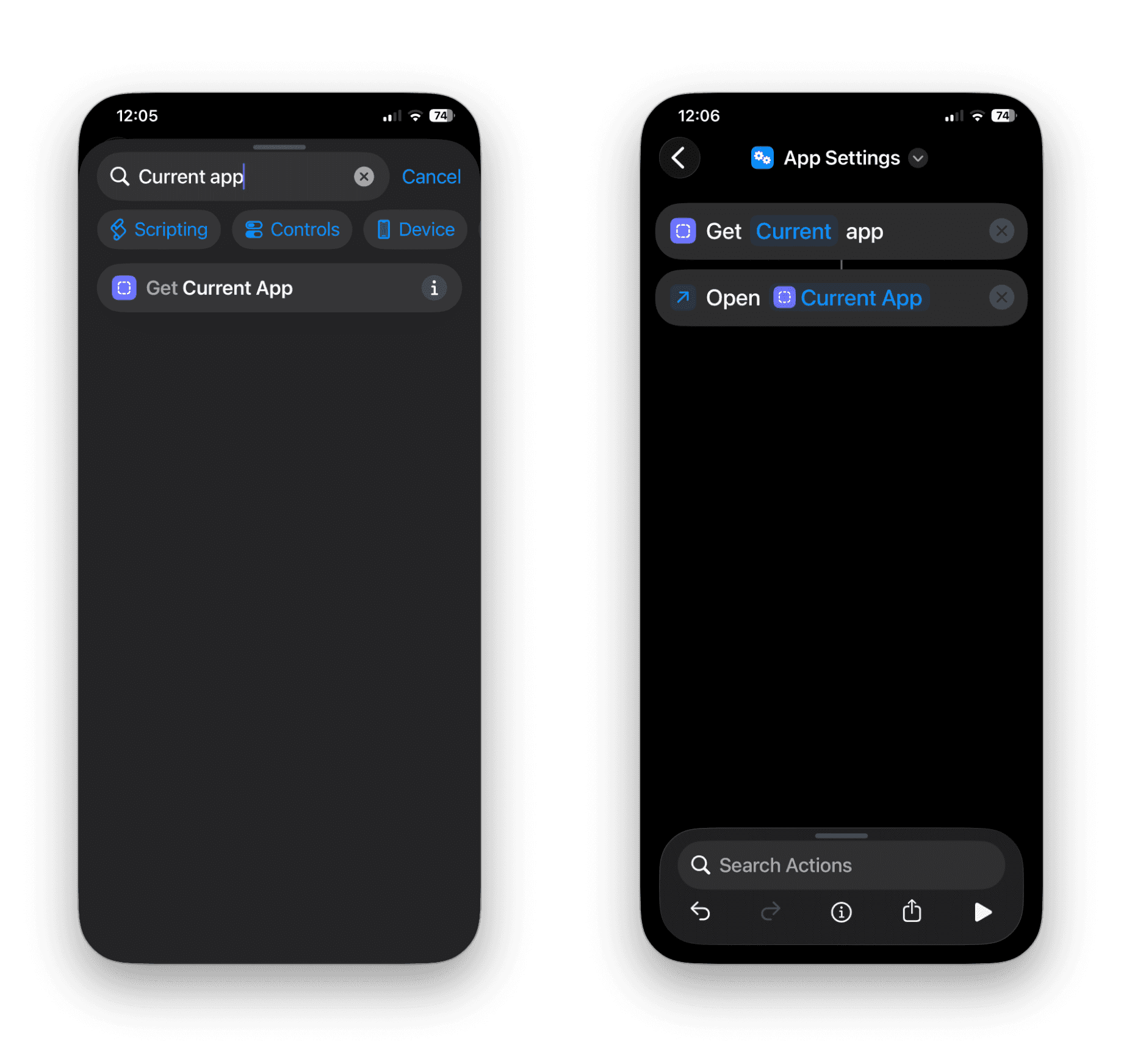
Add it to your shortcut. Then remove the default variable of Open Current App by selecting the Clear Variable
In the URL field, enter this format: app-prefs: then add the Get Current app variable
Select the Current App variable selected scroll down the list of types and select Bundle Identifier.
Your final shortcut should look like this:
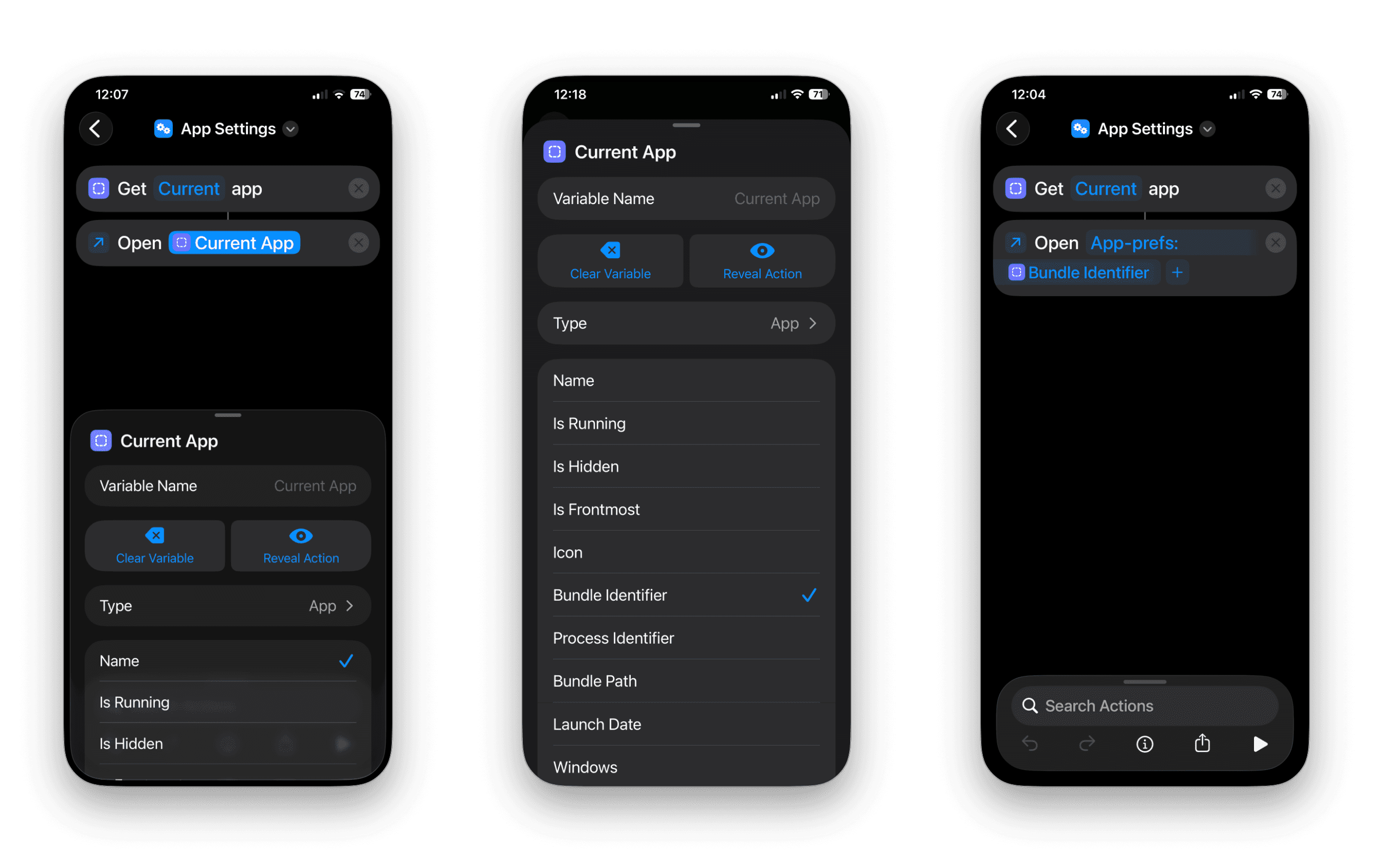
That’s it. Two actions, done.
TIP: If you don’t see Bundle Identifier as a detail option, tap the variable again and look for a “Details” or “Show More” option, then select Bundle Identifier from the list.
ADD IT TO CONTROL CENTRE
This is what makes it genuinely useful rather than just a neat trick.
Open Settings
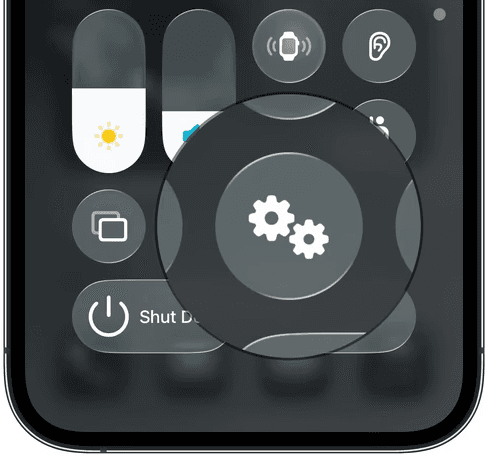
Tap Control Centre
Tap Add a Control
Find Run Shortcut (or Shortcuts)
Choose your App Settings shortcut
Once it’s added, you can long-press in Control Centre to enter edit mode and drag it somewhere thumb-friendly.
TIP: Adding a specific shortcut to Control Centre requires iOS 18 or later. On older versions you’ll only get a generic Shortcuts control that opens the app.
HOW TO USE IT
Open any app → swipe down for Control Centre → tap your shortcut.
Settings should open directly on that app’s page (notifications, permissions, background refresh, etc.).
If you run it from the Home Screen, or from an app that doesn’t expose a Settings page, it may fall back to opening the main Settings screen instead.
TROUBLESHOOTING
THE SHORTCUT OPENS THE MAIN SETTINGS SCREEN INSTEAD OF THE APP PAGE
This can happen if the app doesn’t expose a Settings page, or if iOS doesn’t recognise that app’s bundle identifier via app-prefs:. It’s uncommon, but it does happen.
I GET A PERMISSION PROMPT THE FIRST TIME I RUN IT
That’s normal. iOS may ask for confirmation the first time a shortcut opens Settings via a URL scheme. Tap Allow and it shouldn’t ask again.
IT DOESN’T SEEM TO DETECT THE RIGHT APP
Run it while the app is still open, or immediately after switching away from it. If you’ve hopped between a few apps, Shortcuts may not grab the one you intended.
I CAN’T FIND “GET CURRENT APP”
Double-check you’re on iOS/iPadOS 18.5+. If you are, try restarting your device and reopening Shortcuts — some actions only appear after the OS/Shortcuts database refreshes.
READ NEXT
Shortcuts: Power Menu — build a single shortcut that gives you quick access to everything
Trigger When An App Is Opened Or Closed — take automation further with app-based triggers
Create An iOS Automation When Connecting Airpods — more ways to make iOS work the way you want
Its The Simple Things — Save time and effort on even the smallest tasks.
Low Power Mode — Let's create a Low Power Mode Automation.
FEEDBACK:
If this guide helped please let me know by completing the How useful did you find this? poll below.





More in

Shortcuts
Shortcuts: Power menu
Shortcuts
Check which door or window sensors are open using Shortcuts

Shortcuts
Night-Only Charging Automation in iOS Shortcuts Using Regex

Shortcuts
A Smarter Way to Organise Screenshots Using Apple Shortcuts

Shortcuts
One tap playlist

Shortcuts
Morning Routine

Shortcuts
Create an iOS Automation When Connecting AirPods
Shortcuts
Create an iOS Shortcut to Capture, Name, and Save Receipt Images.

Shortcuts
How to Save macOS Screenshots Anywhere with Shortcuts (Part 2)
Shortcuts
Create a menu based Shortcut
Shortcuts
How to Save macOS Screenshots Anywhere with Shortcuts (Part 1)
Shortcuts
Its the simple things.

Shortcuts
macOS Shortcut: Test Your Network Speed.

Shortcuts
Apple TV Shortcuts

Shortcuts
Trigger When an App Is Opened or Closed

Shortcuts
Estimated Time Of Arrival.

Shortcuts
Apple Watch Action Button.
Shortcuts
iOS 18 adds new If Command Features.
Shortcuts
Automations: Low Power Mode.
Shortcuts