Difficulty | Duration |
|---|---|
Easy | 30 mins (approx) |
Apple has just rolled out a firmware update for the AirPods Pro 3.
Apple has a handy support document for AirPods firmware updates, and it says that the latest (8B34) update includes ‘unspecified bug fixes and other improvements’. Just so you know, no other AirPods models got firmware updates today.
So I thought I detail how to install firmware updates and also check what version is currently installed for AirPods:
Please ensure your iPhone, iPad or Mac is running the newest version of iOS, iPadOS or macOS, and that Bluetooth is switched on.
Also, make sure your AirPods are connected to your iPhone, iPad or Mac using Bluetooth.
Next, connect your iPhone, iPad or Mac to Wi-Fi.
Then, connect your charging case to a power source.
Place your AirPods in their charging case and close the lid. Keep the lid closed and make sure your AirPods are within Bluetooth range of your iPhone, iPad or Mac.
Allow at least 30 minutes for the firmware to update.
Once the update is complete, open the lid of the charging case to reconnect your AirPods to your iPhone, iPad or Mac.
Finally, double-check the firmware version to ensure everything is working as expected by the following:
On iPhone or iPad
Connect: Make sure your AirPods are connected to your device.
Open Settings: Tap the Settings app icon.
Go to Bluetooth: Tap on Bluetooth.
Tap Info: Tap the Info button (a blue "i" in a circle) next to your AirPods' name.
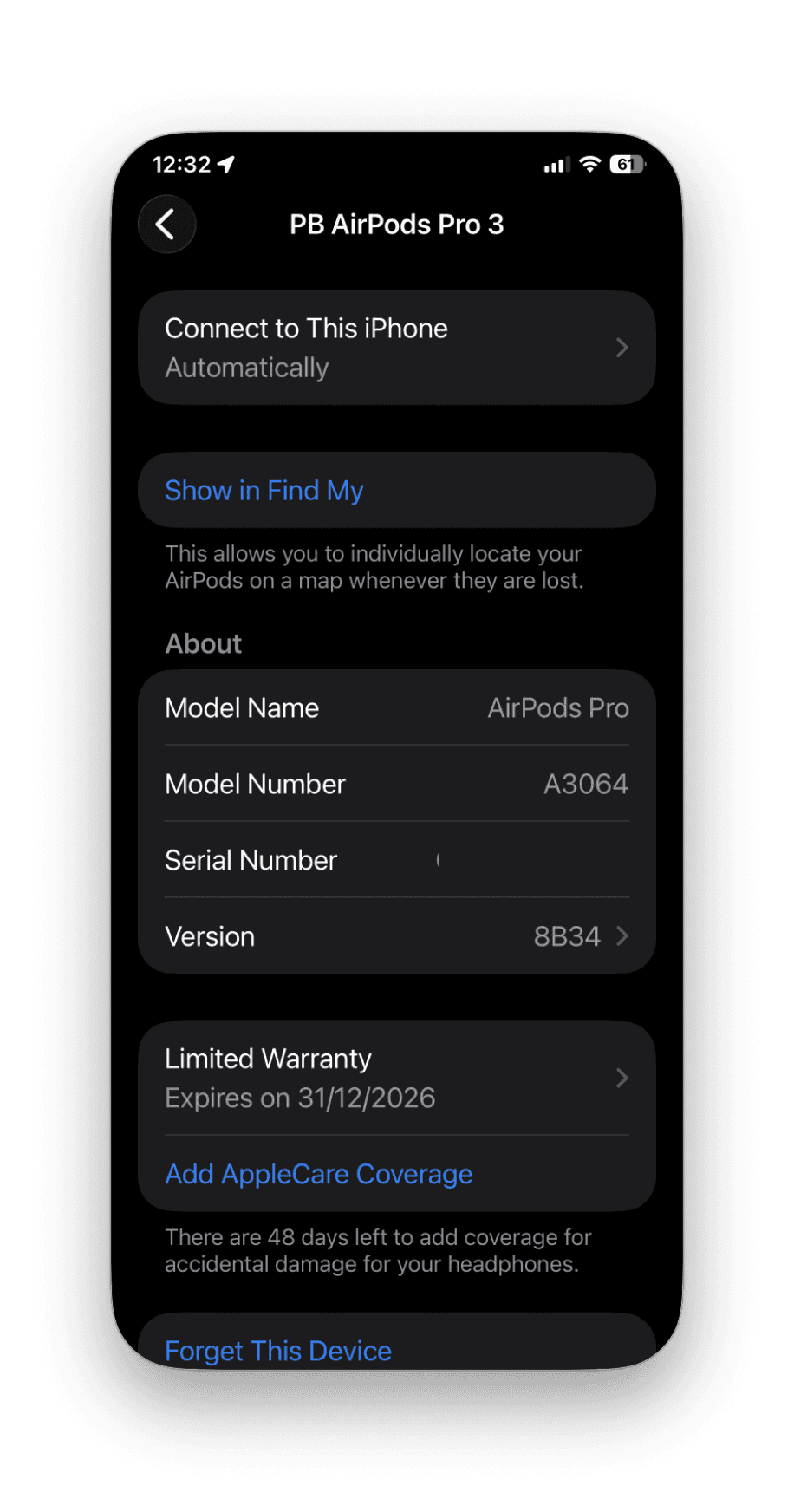
Find Version: Scroll down to the About section to see the firmware version listed.
On Mac
Connect: Ensure your AirPods are connected to your Mac.
Open System Settings: Click the Apple menu > System Settings.
Go to Bluetooth: Click Bluetooth.
Tap Info: Click the Info button (blue "i") next to your AirPods.
Find Version: Scroll down to the About section for the firmware details.





More in
How to?
How To Add A Device To Apple Home (Homekit + Matter)
How to?
Fix “No Response” in Apple Home: 12 checks that solve it fast
How to?
Convert Home Automations to Shortcuts (and Make Automations Feel Smarter)

How to?
Restarting vs Resetting Your HomePod.
How to?
Sharing is caring

How to?
How to: Group HomeKit Accesories.
How to?
Backing up Shorcuts
How to?
Replacing a Apple AirTag battery.

How to?