Difficulty | Duration |
|---|---|
Medium | 5 Mins. |
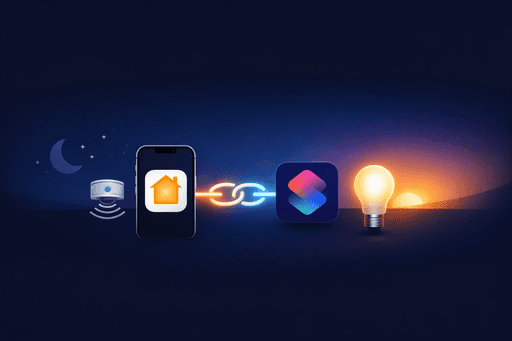
This is a follow-on to my Motion Detection post, where I mentioned we’d cover how to convert a standard Home automation to a shortcut to allow for more control.
If you’ve been using the Home app for a while, you’ll already know that its built‑in automations are quick and easy to set up. A sensor detects motion, a light turns on. Simple. And for many homes, that’s all you need.
But there’s a moment most people hit sooner or later where the Home app starts feeling a bit rigid. Maybe your automation turns a light on at 100% brightness and it’s perfect during the day, but horrible at night. Or maybe someone manually adjusts the light to a cosy level, and the next time motion is detected the automation runs again and forces the brightness back to whatever was originally set.
That last one is a very common issue, and it’s exactly the sort of thing converting an automation to a shortcut can solve.
In this tutorial, we’ll build a simple motion automation that turns on a light when motion is detected, then convert it to a shortcut and add smarter logic so it behaves more like a person would.
For this guide, you can use any motion sensor and any light in your home — pick something easy to test so you can confirm it’s working in real time.
WHY CONVERT AN AUTOMATION TO A SHORTCUT?
Before we touch the Home app, it’s worth being clear about what you gain by converting an automation.
A standard Home automation is a bit like a light switch on a timer: it runs a fixed set of actions, and that’s that.
A shortcut‑based Home automation is more like a decision tree:
It can check states first (is the light already on?)
It can behave differently depending on conditions (time of day, occupancy, accessory state)
It can run multiple actions in a controlled order
It can avoid undoing someone’s manual choice
In practice, converting an automation to a shortcut is one of the most useful skills you can learn in the Apple Home ecosystem because it transforms “it works” into “it feels right”.
WHAT YOU’LL NEED
To follow along, you’ll want:
An Apple Home hub (HomePod or Apple TV) so Home automations can run reliably
A motion sensor added to the Home app
A light (bulb, lamp, or ceiling light) added to the Home app
A few minutes where you can trigger motion and watch the automation behaviour
BEFORE WE START (A SMALL BUT IMPORTANT DETAIL)
When you convert a Home automation to a shortcut, it’s still a Home automation.
That means:
It runs on your Home hub (HomePod or Apple TV), not on your iPhone
It won’t appear as a normal shortcut inside the Shortcuts app
It still uses Home automation triggers (motion sensors, contact sensors, time windows, people home/away)
It’s best to think of this as “shortcut-style logic inside the Home app”, rather than a full shortcut.
Shortcuts vs “Convert to Shortcut”
A normal shortcut in the Shortcuts app can do loads of things outside Apple Home (open apps, send messages, work with files, pull web content, run third-party actions, etc.) because it runs on your iPhone, iPad, or Mac.
A Home automation that’s been converted to a shortcut has a smaller set of actions available, because it needs to run reliably on your Home hub. You’ll mainly see Home-focused actions like Control Home, plus logic blocks such as If, Otherwise, Repeat, and Wait.
This is why you won’t see many “phone-based” actions here (like Open App, Send Message, or file actions). It can feel limiting at first, but it’s exactly what makes Home automations reliable — they can run even when your iPhone isn’t at home.
For motion lighting, it’s ideal, because the actions you do get are the ones you actually need.
THE PROBLEM WE’RE SOLVING (IN PLAIN ENGLISH)
Let’s describe the behaviour most of us want:
If motion is detected and the light is off, turn it on.
If motion is detected and the light is already on, don’t interfere.
That’s it. That single rule avoids the most annoying outcome:
Someone sets the light to a cosy level, then a motion trigger forces it back to bright white at 100%.
Once you learn this pattern, you’ll start using it everywhere.
STEP 1: CREATE A MOTION AUTOMATION
Open the Home app.
Tap the + icon.
Select Add Automation.
Select A Sensor Detects Something.
Choose the motion sensor you want to use.
Tap Next.
STEP 2: CONFIGURE THE TRIGGER
Ensure Detects Motion is selected.
Configure any conditions you want, such as:
Time — only run during the evening, only overnight, or only during the day
People — only run when someone is home, or only when nobody is home
3. Tap Next.
Tip: keep it simple for your first run.
If you add time windows and occupancy conditions right away, it can make testing harder. The goal is to confirm the logic works first, then add the clever parts later.
STEP 3: CONVERT THE AUTOMATION TO A SHORTCUT
Instead of selecting an accessory to control, scroll to the bottom of the automation setup screen and select:
Convert To Shortcut
This is where the magic happens.
You’ll now see a shortcut editor within the Home app automation setup.
APPLYING ACTIONS TO THE SHORTCUT
In this example, we’ll add a simple check to see if the light is already on.
If it’s already on, we do nothing.
If it’s off, we turn it on.
This prevents the automation from overriding your light settings every time motion is detected.
STEP 4: ADD AN IF ACTION
Delete the default action (if one is already there).
Search for If.
Add the If action to your shortcut.
Tap the Input within the If action.
Select Select a Home Accessory.
Choose the light you want to control (for example, a hallway light, bedroom lamp, or ceiling light).
Tap Done.
At this point, the condition will look like:
If [Light Name] Is On
That’s exactly what we want.
STEP 5: ADD A “NOTHING” ACTION
Search for Nothing.
Add it under the If [Light Name] Is On condition.
Why add “Nothing”?
Because if the light is already on, we don’t want the automation to do anything at all.
This is the simplest possible way to stop Home from overriding brightness, colour temperature, or any other changes someone made manually.
STEP 6: ADD “CONTROL HOME” IN THE OTHERWISE SECTION
Search for Control Home.
Add it under Otherwise.
Tap Scenes and Accessories.
Select the same light you chose earlier.
Ensure the action is set to turn the light On.
Tap Done.
Your shortcut logic should now look like this:
If [Light Name] Is On
Nothing
Otherwise
Control Home → Turn [Light Name] On
In plain English:
• If the light is already on, leave it alone.
• If it’s off, turn it on.
That is the core upgrade.
STEP 7: NAME AND TEST THE AUTOMATION
Tap Next.
Give the automation a name.
Test the automation (optional, but recommended).
Tap Done.
Once saved, your automation will appear in the list of Home automations.
CONGRATULATIONS — YOU’VE UNLOCKED THE MOST USEFUL PATTERN
That small change is one of the best “quality of life” upgrades you can make in Apple Home.
At this point you already have:
A motion automation that behaves more naturally
A setup that doesn’t constantly reset your brightness
A foundation you can build on
Now let’s take it further.
UPGRADE 1: SET DIFFERENT BRIGHTNESS DEPENDING ON TIME
A very common motion‑lighting setup is:
Bright during the day
Dim and warm overnight
This is where shortcut logic becomes genuinely useful.
How to do it:
In your shortcut, add another If action before the light turns on.
Use a time condition so the shortcut can decide which brightness to apply.
Example logic:
If time is between 07:00 and 22:00
Turn the light on at 80%
Otherwise
Turn the light on at 15%
Important detail:
If you use the “don’t override when already on” rule from earlier, make sure the brightness‑setting actions only happen in the Otherwise path (when the light was off).
That keeps the behaviour polite.
Practical tip:
Start with conservative brightness values. Even 20% at night can feel bright in a dark room, depending on the bulb and the room size.
UPGRADE 2: ONLY TURN ON LIGHTS IF IT’S ACTUALLY DARK
Time windows are useful, but sunset and daylight shift throughout the year.
If you want your automation to feel truly smart, the best trigger is often brightness — not time.
There are two common approaches:
A) Use a dedicated light sensor
Some motion sensors include a light level (lux) reading. If yours does, you can use it to decide whether the automation should run.
B) Use a “daytime scene” and “nighttime scene” approach
If your sensors don’t provide lux readings in Apple Home, you can still get most of the benefit by using scenes.
Example:
Daytime Motion scene: brighter, cooler white
Night Motion scene: dimmer, warmer light
Then you switch which scene is active based on a time window.
It’s not perfect, but it’s reliable and easy to maintain.
UPGRADE 3: TURN THE LIGHT OFF AGAIN AFTER NO MOTION
Turning lights on with motion is the easy part.
Turning them off reliably is where people get frustrated.
There are two patterns:
Pattern A: Simple timer off
Motion detected → light on
Wait 2 minutes
Turn light off
Pattern B: Respect manual control
Motion detected → light on
Wait 2 minutes
If the light is still at the “automation brightness”, turn it off
Otherwise do nothing (someone adjusted it manually, so leave it)
Pattern B feels far more natural in a household.
The reason is simple:
If someone changes the brightness, they are telling you they want the light to stay on.
Shortcut automations let you build that respect into the behaviour.
UPGRADE 4: AVOID RAPID RE-TRIGGERS AND FLICKERING
Motion sensors don’t all behave the same.
Some trigger constantly.
Some have a built‑in cooldown.
Some motion sensors are very sensitive and can re-trigger from tiny movement.
This can lead to odd behaviour like:
The light repeatedly being set to the same state
Multiple actions firing while someone is still in the room
Unexpected delays
To keep things smooth:
Use the “If light is already on → do nothing” rule (it stops most flicker problems)
Avoid stacking long waits inside a motion trigger shortcut unless you’ve tested thoroughly
Keep your motion automation focused on “turn on” and handle “turn off” separately if needed
Yes, you can do both in one automation, but splitting them can make it easier to troubleshoot.
UPGRADE 5: ONLY RUN THE AUTOMATION WHEN SOMEONE IS HOME
If you’ve got pets, you’ll understand this one.
Motion sensors and animals are a classic problem:
A dog walks through the hallway at 03:00
The light comes on
Your home has a mini disco for no reason
Apple Home gives you a simple occupancy condition:
Only run when someone is home
This can be helpful for certain automations, particularly in shared homes.
If you want to avoid the pet problem while still allowing nighttime lighting, you can set it to:
Run only when someone is home
Run only during the night
Use a low brightness (10–15%)
This makes the automation useful without being disruptive.
UPGRADE 6: ADD A “DO NOT DISTURB” MODE (WITH A VIRTUAL SWITCH)
If you want real flexibility, a great trick is to add a virtual on/off switch that controls whether the automation runs.
Apple Home doesn’t include virtual switches by default, but many people achieve this using a smart plug they don’t physically use, or a dedicated accessory that behaves like a toggle.
Example idea:
A smart plug labelled “Motion Lights Enabled”
Leave it on by default
Turn it off when you don’t want motion lighting
Then in your shortcut:
If [Motion Lights Enabled] is On
Continue
Otherwise
Stop Shortcut
This gives you:
A manual override
An easy toggle in Control Centre
A way to temporarily disable motion lighting during a film, guests, or a late night
If you’re deep into HomeKit, this pattern becomes incredibly powerful.
UPGRADE 7: LIMIT THE AUTOMATION TO CERTAIN DAYS
Maybe you only want a bright “get ready” light on weekdays.
Or you want motion lighting in your office only on workdays.
Apple Home’s built‑in conditions are improving, but day-of-week logic is still the kind of thing shortcut automations handle better.
You can do this by checking date/time formatting inside the shortcut and making a decision based on the day.
Even if you keep it simple (weekday vs weekend), it can make automations feel tailored to your routine.
TROUBLESHOOTING (THE THINGS THAT TRIP PEOPLE UP)
If your automation doesn’t behave as expected, these are the most common causes.
Motion sensor cooldown behaviour
Some motion sensors have what are called cooldown times, and these can vary by manufacturer. This is the time between a motion activation and when the sensor is ready to trigger again.
For example, some motion sensors have a cooldown time of around a minute, which means once motion is detected, the sensor may not trigger again for a short period.
This doesn’t affect the simple automation we built above, but it can impact more advanced shortcuts that rely on frequent updates.
Too many waits in one automation
A long “Wait” action can keep the automation running and cause odd timing behaviour.
If you want a reliable off‑timer, consider creating a second automation for “no motion detected” (if your sensor supports it), or keep the wait short.
The light is part of a scene that gets triggered elsewhere
If you have multiple automations controlling the same light, you can get conflicting results.
A quick test:
Temporarily disable other automations for that light
Test the motion automation alone
The light doesn’t report state correctly
Some accessories are slower to update state in the Home app. If “Is On” isn’t accurate in real time, your If logic can behave strangely.
This is usually accessory‑specific. Try a different light to confirm.
COMMON IMPROVEMENTS YOU CAN ADD (WITHOUT MAKING IT TOO COMPLEX)
If you want extra polish without turning your automation into a project, these upgrades are quick wins.
Add a gentle night brightness (10–20%)
Use warm white at night and cool white during the day
Add a virtual enable/disable switch
Keep the “don’t override when already on” logic in place
Use separate automations for “turn on” and “turn off” if you’re adding timers
EXAMPLE: A REALLY NICE “HALLWAY AT NIGHT” SETUP
Here’s a complete setup that feels natural for many homes.
Goal:
During the day: motion turns on the hallway light at 80%
At night: motion turns on the hallway light at 15% and warm white
If someone manually changes the brightness: the automation never resets it
Logic:
If [Hallway Light] Is On
Nothing
Otherwise
If time is between 07:00 and 22:00
Control Home → Turn Hallway Light On at 80%
Otherwise
Control Home → Turn Hallway Light On at 15% (warm)
FAQ
Can I do this without a HomePod or Apple TV?
No, you need a hub for Home automations to work.
Will this show up in the Shortcuts app?
No — it remains a Home automation that runs from your Home hub.
Does this work with Matter accessories?
Yes. Matter accessories added to Apple Home can be used in automations and shortcut-based Home automations. The exact features available (brightness, colour temperature, etc.) depend on the accessory itself.
Why does Home keep resetting brightness?
Because standard Home automations re-apply the accessory state every time they run. The shortcut conversion lets you add logic to avoid doing that when the light is already on.
FINAL THOUGHTS
Converting Home automations to shortcuts is one of the best ways to make your smart home feel smarter.
The Home app’s default automations are great for quick results, but a small amount of logic goes a long way:
Check if a light is already on
Do nothing if it is
Only turn it on when it needs it
From there, you can build up gentle lighting, time-based behaviour, and overrides that respect people living in the home.
If you’d like, you can now take this exact pattern and apply it to:
Bathroom motion lighting
Stairway lighting
Office presence lights
Kitchen under-cabinet lighting
Nighttime navigation lights for bedrooms
Once you learn it, you’ll use it everywhere.
If you haven’t already, read my Motion Detection guide here: Home Automation: Motion Detection
As always, if you found this post of any use please let me know by completing the How useful did you find this? poll below.





More in
How to?
How To Add A Device To Apple Home (Homekit + Matter)
How to?
Fix “No Response” in Apple Home: 12 checks that solve it fast
How to?
Restarting vs Resetting Your HomePod.
How to?
Updating firmware on AirPods
How to?
Sharing is caring
How to?
How to: Group HomeKit Accesories.
How to?
Backing up Shorcuts
How to?
Replacing a Apple AirTag battery.

How to?