This post is the simple, practical guide I wish I’d had when I started. It explains what Matter, Thread, Wi-Fi and Bluetooth actually do inside Apple Home, what you should care about, and what to buy if you want your smart home to feel reliable.
The confusing part is that all of these words (Matter, Thread, Wi-Fi and Bluetooth ) get thrown around like they’re the same thing. They’re not.
Some of them are “how devices talk”.
Some of them are “the language they speak”.
Some of them are simply a setup method.
WHAT YOU’LL GET:
Best for: Anyone buying smart home devices for Apple Home (or troubleshooting reliability)
What you’ll achieve: You’ll know exactly what each tech does, and what to prioritise when buying
Setup time: 10 minutes to read
Difficulty: Easy
YOU’LL NEED:
Apple Home app
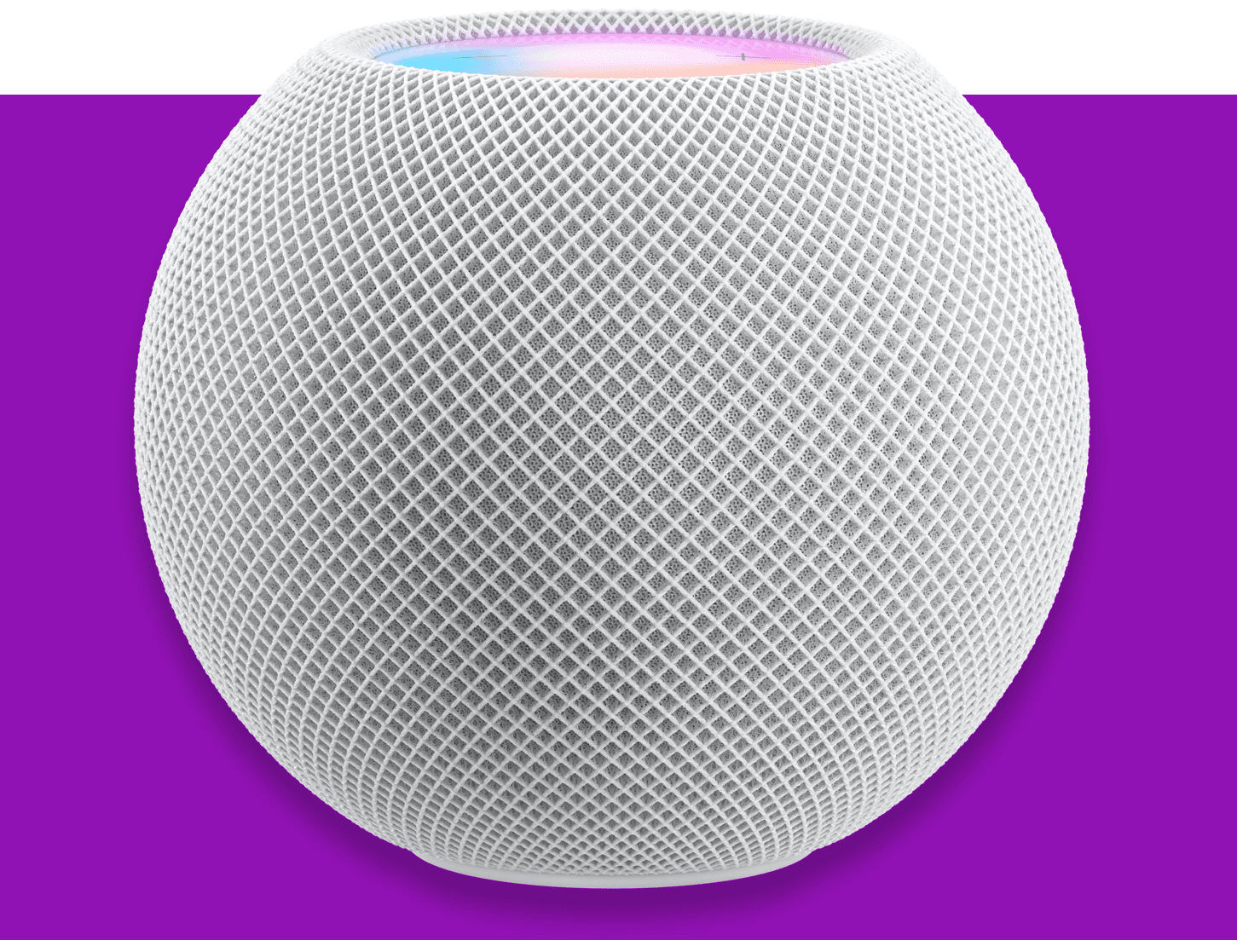
A Home hub (recommended): HomePod mini, HomePod, or Apple TV
A working Wi-Fi network (2.4GHz is still important)
A bit of patience (because smart home marketing rarely explains this clearly)
TAKE AWAYS:
If you only remember one thing from this post, make it this:
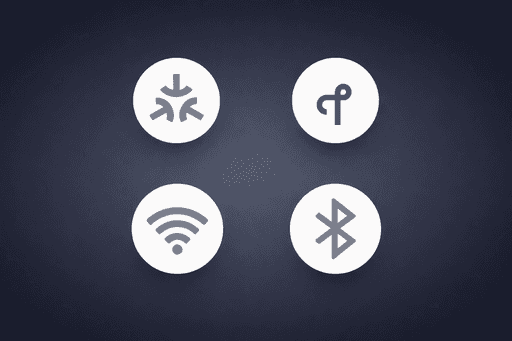
MATTER is the “standard language” devices can speak so they work across ecosystems
THREAD is the low-power mesh “network” that makes devices more reliable
WI-FI is the home network most devices already use (easy, but can get crowded)
BLUETOOTH is often used for setup or short-range control (fine for simple devices)
For most Apple Home users:
A HomePod mini + Thread devices = the smoothest experience
Wi-Fi devices can still be great, but your router matters
Matter is a bonus, not a magic fix by itself
THE SIMPLE WAY TO THINK ABOUT IT:
Here’s the easiest mental model:
Matter = the language
Thread / Wi-Fi / Bluetooth = the ways devices travel across your home
A device might speak Matter, but travel using Wi-Fi.
Another device might speak HomeKit, but travel using Thread.
You can mix and match. Apple Home supports a blended smart home.
WHAT EACH ONE IS (IN PLAIN ENGLISH)
MATTER
Matter is a smart home standard designed to help devices work across platforms.
Instead of buying a “HomeKit version” and an “Alexa version”, the idea is you can buy one device that supports Matter and it can work in different ecosystems.
Think of Matter like a universal plug adapter for smart home compatibility.
WHAT MATTER IS GOOD FOR:
Easier compatibility across platforms
A simpler buying decision (“will this work with Apple Home?”)
More choice as more brands adopt it
Future-proofing, especially for new smart home categories
WHAT MATTER IS NOT:
It’s not a connection type
It’s not the same thing as Thread
It doesn’t automatically fix “No Response” issues
Matter tells you the device can speak a common language.
It doesn’t guarantee your home network is stable enough for it.
HOW MATTER SHOWS UP IN APPLE HOME:
In Apple Home, Matter devices are added as accessories like anything else. You’ll scan a code, add it to your home, and then control it normally.
In day-to-day use, a good Matter device feels like a good HomeKit device.
The difference is mostly about compatibility and long-term ecosystem flexibility.
WHEN MATTER REALLY MATTERS:
Matter matters most when you’re buying new devices today and you want to avoid being locked into a single brand or standard.
It also matters if you’re building a smart home over time and want to keep your options open.
THREAD
Thread is the one that changes how your home feels.
Thread is a low-power, mesh networking technology. It’s designed for smart home devices like sensors, plugs, switches, and lights to stay connected reliably without putting extra load on your Wi-Fi.
Instead of every device talking to the router, Thread devices talk to each other and pass messages along. That’s what “mesh” means.
Think of Thread like a relay race:
your Home hub is part of the team
each Thread device can pass the message along
the network gets stronger as you add more Thread devices
WHAT THREAD IS GOOD FOR:
Reliable connections
Faster response times
Devices that stay “reachable” more consistently
Reducing Wi-Fi congestion
Making sensors feel instant
THREAD NEEDS A BORDER ROUTER
Thread doesn’t just work on its own. You need something that connects Thread to your home network.
In Apple Home, that’s normally:
HomePod mini
HomePod (newer models)
Apple TV (newer models)
These act as Thread Border Routers.
If you’ve got a HomePod mini, you’ve already done the hardest part.
WHY THREAD FEELS DIFFERENT TO WI-FI
Most Wi-Fi smart home devices rely heavily on router quality, Wi-Fi interference, and your network being “clean”.
Thread devices are built for low-power smart home stability.
That’s why people often describe Thread devices as “more reliable” even when their router isn’t perfect.
THE BIG THREAD BENEFIT FOR APPLE HOME USERS
Thread is the easiest way to get:
fewer dropouts
fewer “No Response” moments
more consistent automation triggers
better sensor responsiveness
It’s not flawless, but it’s one of the best upgrades you can make.
WI-FI
Wi-Fi is what most people already understand, because it’s what your phones and laptops use.
A Wi-Fi smart device connects directly to your router (usually on 2.4GHz). That makes it simple to set up and flexible because Wi-Fi covers your whole home.
It’s also why Wi-Fi smart homes can become unreliable when you add lots of devices.
WHAT WI-FI IS GOOD FOR:
Cameras and doorbells (high bandwidth)
Smart speakers and displays
Devices that already need mains power
Devices that need frequent data updates
WHAT WI-FI CAN STRUGGLE WITH:
Too many devices on one router
Poor coverage in certain rooms
Interference from neighbours
Routers that don’t handle “many small connections” well
Devices that only support 2.4GHz (very common)
A lot of “No Response” issues aren’t the device.
They’re the Wi-Fi environment.
THE 2.4GHZ DETAIL YOU SHOULD KNOW
Most smart home accessories use 2.4GHz Wi-Fi.
That’s not old-fashioned. It’s practical.
2.4GHz travels further through walls and is more stable over distance.
5GHz is faster, but doesn’t reach as far.
So if your device “won’t connect”, it’s often because:
your network name is shared across 2.4GHz and 5GHz and the device gets confused
your router is steering too aggressively
your 2.4GHz signal is weak where the device lives
BLUETOOTH
Bluetooth is usually the one that causes the most misunderstandings.
Bluetooth smart home devices are often:
short-range
lower power
sometimes used for setup only
sometimes used for direct control when you’re nearby
You’ll commonly see Bluetooth used for:
door locks
sensors
simple accessories
initial pairing before switching to something else
WHAT BLUETOOTH IS GOOD FOR:
Simple, low-power devices
Setup processes
Accessories that don’t need to send constant updates
WHAT BLUETOOTH CAN FEEL LIKE IN APPLE HOME:
Bluetooth can feel fine… until distance and walls get involved.
The good news is:
Apple Home hubs can help with Bluetooth reach, because your HomePod / Apple TV can act as a “nearby controller” even when your iPhone isn’t close.
That means Bluetooth devices often behave much better in a home with a hub. I have a couple Onvis Motion Sensor's in my house and have never had any issues with them, check out the review
WHAT I RECOMMEND (FOR MOST HOMES)
If you want an Apple Home setup that feels fast and reliable, here’s the simplest recommendation:
HAVE A HOME HUB
HomePod mini or Apple TV is the foundation.
Even if you never touch automations, a hub improves reliability and remote access.
BUY THREAD WHERE IT MAKES SENSE
For sensors, plugs, switches, and lights, Thread is a brilliant default.
It’s the best option for:
motion sensors
contact sensors
smart plugs
light bulbs
buttons
USE WI-FI WHERE WI-FI MAKES SENSE
For video, audio, and anything “data heavy”, Wi-Fi is still normal.
Wi-Fi is often the right choice for:
cameras
doorbells
smart displays
speaker systems
vacuum cleaners
LET MATTER BE A BONUS
Matter is great to have.
If two devices are equally good, choose the one that supports Matter.
It keeps your options open.
COMMON PROBLEMS (AND FIXES)
This is the part that saves you hours.
If your Apple Home setup feels flaky, these are the most common causes and what to do next.
PROBLEM 1: “NO RESPONSE” HAPPENS RANDOMLY
Most common causes:
Wi-Fi quality or interference
Home hub having a hiccup
accessory firmware issues
router struggling with lots of smart devices
Fix checklist:
Restart your iPhone / iPad
Restart your Home hub (HomePod or Apple TV)
Power-cycle the accessory
Check your router isn’t overloaded
Confirm the device is on 2.4GHz (if Wi-Fi based)
If you want a full checklist, link this in your cluster:
Fix “No Response” in Apple Home: 12 checks that solve it fast
PROBLEM 2: WI-FI DEVICES WON’T CONNECT DURING SETUP
Most common causes:
device only supports 2.4GHz
network steering / band steering confusion
weak signal where you’re setting it up
Fix checklist:
Move closer to the router for setup
Temporarily disable 5GHz or use a guest 2.4GHz network (if possible)
Try setup again with the phone connected to 2.4GHz
Rename your network only if you’re confident (not always necessary)
PROBLEM 3: THREAD DEVICES FEEL SLOW OR UNRELIABLE
This is less common, but it happens.
Most common causes:
you don’t actually have a Thread Border Router
your Thread network is small (only 1 Thread device)
the device is too far away from the rest of the mesh
Fix checklist:
Confirm you have a HomePod mini / compatible Apple TV
Add one or two more Thread devices to strengthen the mesh
Move a Thread device closer to bridge gaps (mesh needs hops)
Thread gets better as you add more of it.
PROBLEM 4: BLUETOOTH DEVICES ARE FLAKY
Most common causes:
device is too far from your Home hub
thick walls or interference
hub is in a poor location
Fix checklist:
Move your HomePod mini closer (even temporarily to test)
If you have multiple hubs, ensure one is nearer to the accessory
Keep your hub away from routers/microwaves/TV cabinets if possible
PROBLEM 5: AUTOMATIONS ARE INCONSISTENT
Most common causes:
the hub running automations is having a wobble
the device trigger is slow to report state
overlapping automations conflict with each other
Fix checklist:
Restart the Home hub
Simplify the automation (test a basic version first)
Check for duplicate automations doing opposite actions
Consider Thread sensors for instant triggers
Use a dummy switch trick if repeat triggers cause chaos
BUYING TIPS (SO YOU DON’T REGRET IT)
This is the part that actually saves money.
When you’re buying a smart device for Apple Home, these are the questions that matter.
DOES IT SUPPORT APPLE HOME PROPERLY?
Look for:
Apple Home support (HomeKit or Matter)
Reliable pairing and real user reviews
A brand that updates firmware
IS IT THREAD, WI-FI, OR BLUETOOTH?
For sensors and “automation devices”, Thread is a strong buy.
For cameras, Wi-Fi is expected.
For locks, Bluetooth can be fine (especially with a nearby hub).
WHERE WILL IT LIVE IN YOUR HOUSE?
If it’s far from your router:
Thread often holds up better
Wi-Fi may struggle without good coverage
DO YOU WANT FUTURE FLEXIBILITY?
If you want freedom to switch ecosystems later, Matter is helpful.
If you’re fully committed to Apple Home only, HomeKit-only devices can still be brilliant.
AVOID “CHEAP WI-FI EVERYTHING” AS A LONG-TERM STRATEGY
A couple of Wi-Fi devices is fine.
A home filled with 40 Wi-Fi devices can become “why is this unreliable?” unless your router is genuinely excellent.
Thread exists to reduce this exact problem.
WHAT TO BUY FIRST (IF YOU’RE JUST STARTING OUT)
If you want an Apple Home setup that feels good quickly:
HomePod mini (or Apple TV)
A Thread motion sensor
A Thread smart plug
A reliable smart bulb (Thread if possible)
Build one automation you actually use daily
A smart home feels “real” when you stop opening the app.
A SIMPLE SHOPPING RULE YOU CAN USE
If you want a simple buying rule:
Thread for sensors, plugs, and lights
Wi-Fi for cameras, doorbells, and anything video
Matter as a nice-to-have that keeps options open
Bluetooth is fine when there’s a hub nearby
REAL WORLD EXAMPLES (SO IT CLICKS)
Here are a few realistic combinations:
EXAMPLE 1: HALLWAY LIGHTING THAT NEVER FEELS LATE
Thread motion sensor
Thread bulb or smart switch
HomePod mini hub
Result: fast, reliable triggers.
EXAMPLE 2: “NO RESPONSE” CAMERA ISSUES
Wi-Fi camera/doorbell
Router in a cupboard
Weak signal at the front door
Result: camera drops out occasionally.
Fix: improve Wi-Fi coverage (mesh/AP placement), not Matter or Thread.
EXAMPLE 3: OFFICE AUTOMATIONS THAT NEED PRECISION
Wi-Fi presence sensor (like Aqara FP2)
Dummy switch logic
HomePod mini audio scenes
Result: reliable “working” behaviour, with smarter automation control.
COMMON QUESTIONS (FAQ)
DO I NEED MATTER FOR APPLE HOME?
No. You can have an excellent Apple Home setup without Matter.
Matter is most useful when you’re buying new devices and want long-term compatibility.
DO I NEED THREAD FOR A RELIABLE HOME?
You don’t need it, but it helps a lot.
Thread improves reliability, especially for sensors and automations.
DO WI-FI DEVICES ALWAYS CAUSE ISSUES?
Not always. Many Wi-Fi devices work perfectly.
The “issues” usually happen when:
the router is weak
coverage is poor
there are lots of devices competing
the network is unstable
WHY DOES BLUETOOTH FEEL WEIRD SOMETIMES?
Bluetooth is short-range and walls matter.
A Home hub helps, because it can act as the nearby controller even when your phone isn’t close.
SO WHAT SHOULD I FOCUS ON?
If you want the biggest improvement with the least effort:
get a HomePod mini
add Thread devices for sensors/automations
keep Wi-Fi devices for the things that need Wi-Fi (cameras/audio)
NEXT UP (READ THESE NEXT):
Fix “No Response” in Apple Home: 12 checks that solve it fast
Convert Home automations to shortcuts (and why you’ll want to)
FINAL THOUGHTS
Matter, Thread, Wi-Fi and Bluetooth all have a role in Apple Home.
The reason it gets confusing is because brands talk about them like they’re competing.
In reality, they stack together.
Matter helps with compatibility.
Thread helps with reliability.
Wi-Fi powers the heavy devices.
Bluetooth fills in the short-range gaps.
If you want a smart home that feels calm, responsive, and dependable, start with a Home hub and prioritise Thread where it makes sense.
Then build from there, good luck.
FEEDBACK:
If this guide helped please let me know by completing the How useful did you find this? poll below.